Sharing to Facebook, Twitter and Tumblr
Last updated November 2, 2011
Sharing
With PhotoExplorer you can send photo links to one or multiple Facebook, Twitter and Tumblr accounts. You can post links from:
- Any photo
- Any day Explore
- Your photostream, sets, collections, galleries, favorites
- Photostreams, Sets, collections, galleries, favorites from other users
Before sharing to Social Networks
Before you can share to social networks you must add your Facebook, Twitter or Tumblr accounts in the Accounts area in PhotoExplorer.
To Add a Social Network Account
- Tap on the Home button and next tap on the Accounts button.
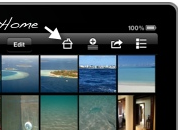
- The Accounts screen appears.
- Tap on the Add Account button.
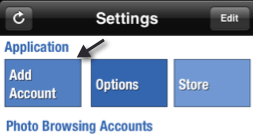
- Tap on the service you wish to add an account for.
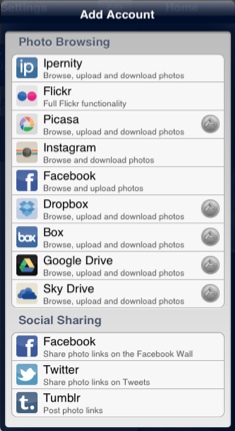
- The logon to the service will appear, you must enter the credentials for the service selected.
- When your user is authenticated, you will see it added to the Accounts screen and you can start sharing with this account.
- You can repeat this process to add more accounts
Sharing photos to Social Networks
Once you have added accounts for social networks, you can share photo links. This can be a link to a specific photo or a link to your or your contacts photostream, sets, collections, galleries or favorites.
Sharing a photo to Social Networks
- When looking at any photo in details view or full screen view, tap on the Share to Social networks button, located in the top toolbar.
- A popup window will appear where you can type a message. The message will be pre populated with the photo title and the photographer's name. (if the photo is yours, the photographer's name is omitted).
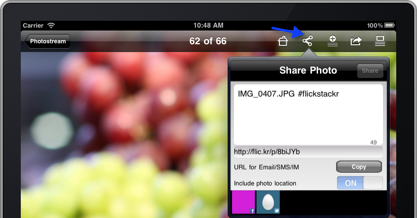
- Below the message you can see the short URL link to the photo. This will always be appended automatically at the end of the message (for twitter) or as a clickable link with the photo (in Facebook and Tumblr)
- If the photo was uploaded to Flickr with geolocation information, then you can turn ON or OFF if you want to include this geolocation information when sharing your photo. Note that this will only be included when you share to Twitter
- Tap on the social networks you want to post to, you can select as many social networks as you want, and the post will be shared across all those networks.
- When you have selected all the social networks where you want to post your photo, tap on Share. In Twitter the post will contain the message, followed by the link. In Facebook and Tumblr the post will contain the message, the photo and the link.
Sharing your photostream to a Social Networks
Tip: You can follow the same steps to share the explore, collections, sets, favorites, galleries.
- To share a link to your photostream, tap on the photostream, then tap on the Action button located in the top toolbar.
- Now tap on Share via Social Network.
- A popup window will appear where you can type a message. The message will be pre populated indicating this is a PhotoStream
- Below the message you can see the URL link to the Photostream.
- Tap on the social networks you want to post to, you can select as many social networks as you want, and the post will be shared across all those networks.
- When you have selected all the social networks where you want to post your photostream, tap on Share. In Twitter and Tumblr the post will contain the message followed by the link to the phot stream. In Facebook the post will contain the message and one of the photos in the photostream with the link to the photostream.