Getting to know PhotoExplorer
Last updated March 4, 2013
Explore with or without an account
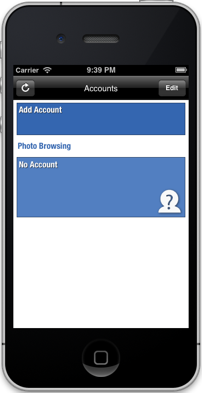
PhotoExplorer is a Flickr browsing app. When you launch PhotoExplorer for the first time, you can start Exploring Flickr right away without an account, or if you want to have access to your photos and all the Flickr functionality then you can add your Flickr account. For detailed steps on how to add a Flickr account view:Adding your Flickr account
Portrait and Landscape
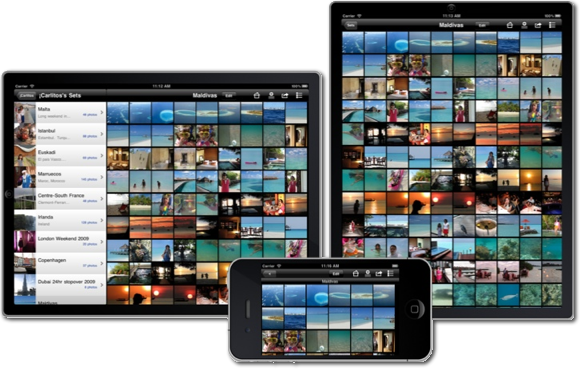
PhotoExplorer works in both portrait and landscape. On the iPad it relies on the usual split view when switching from landscape to portrait mode.
Menu overview
There are several icons on the menu, which you can use to browse your account, view recent photos from everyone or your contacts, look at Explore, search, access your stack, upload photos, check the status of your downloads, configure PhotoExplorer and verify status of purchased add-ins.
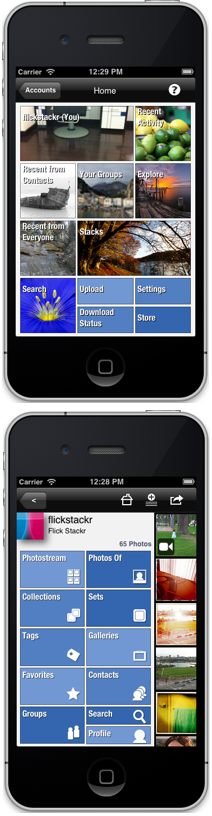
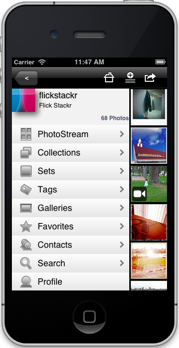
When you select to browse your account you can see your photostream, collections, sets, tags, galleries, favorites, contacts, search on your photostream and view your profile.
Top Toolbar
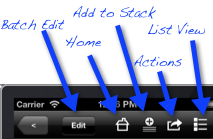
There is also a toolbar at the top with the Home button and the actions you can perform on the photos, like sharing, favoriting, adding them to stack, and changing the view. Some of the options in the toolbar change depending on which option you selected from the menu. Here is an example of the icons you will see in the toolbar when you are viewing a photostream.
Icons available when you are viewinga photostream:
- Batch Edit: Organize one or several photos at a time.
- Home: Need to start over after some time of browsing photos?, no need to tap on the back button many times, just tap on the Home button.
- Add to Stack: If you like a photo you are viewing tap on Add to Stack to add it to one of your stacks.
- More Actions: In more actions you can share via Email or via Social Networks (Twitter, Facebook, Tumblr), Save a photo to your Photo Library, start a slide show, Refresh, and go to Offline Mode.
- List View: Tap on this icon to change from thumbnails view to list view.
Some other icons you may see in the toolbar:
- Choose a Explore date
- Favorite a photo
- Share Photo
- Remove from Stack
- Offline Mode enabled
List View and Thumbnails View
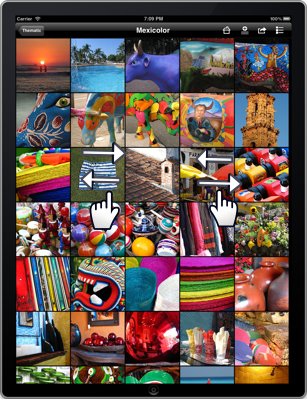
When you are browsing photos you can decide how you want to view them by tapping on the icon on the top right corner, either in list view or thumbnails view. In Thumbnails view you can decided if you want to see small or medium thumbnails, by default the medium thumbnails will be presented, but you can switch between medium and small thumbnails by doing a pinch gesture.
Full Screen, Slide Show and Details View
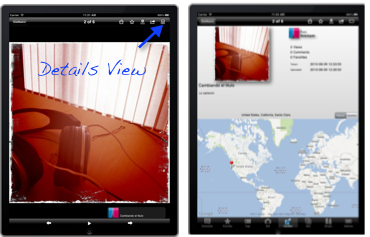
When you tap on photo it will go full size view and if you tap on the top right icon you can switch to details view where you can see comments, tags, location, favorites, EXIF information and the sets, groups, galleries this photo belongs to.
If you are in full size view you can start a slide show by tapping on the play button at the bottom of the photo, or you can view the photo in full screen by tapping on the photo again. In both cases the the PhotoExplorer toolbars will disappear, but. you may still see the quick favorites toolbar on the right corner.
Quick action toolbar
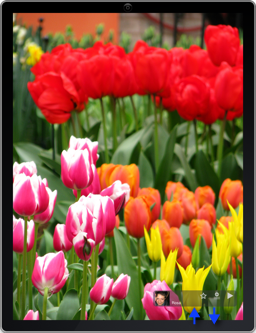
When you are in Full screen view or Slide show mode the quick action toolbar appears at the bottom of the screen, with this toolbar you can favorite or add to the stack a photo without having to exit full screen. If you don't want to see this toolbar just drag the toolbar to the bottom of the screen (all the way to the outside). If you want it back drag it from the bottom of the screen. If you have not enabled the Tap and hold action, you can also make it appear and dissapear with tap and hold