How to view photos in Full Screen?
Last updated March 4, 2013
Going to Full Screen View
You can view any photo in full screen.
- When you are browsing photos either in thumbnail or list view, tap on the photo you want to see in full screen. On your iPad on portrait orientation or on your iPhone in landscape or portrait orientation you will see the photo in a larger size, but still with the top toolbar and the slides show controls at the bottom. On your iPad on portrait orientation, the thumbnails will move to the left and you will see a larger image on the right with the toolbar and slide show controls at the bottom.
- If after tapping on a photo you are in details view rather than full size view, tap on the icon on the top right corner to switch from details view to full screen view.
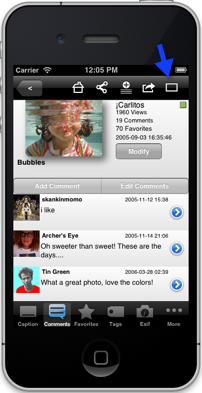
- To hide everything around the photo, so it is in Full Screen, tap anywhere on the screen.
The Quick Action Toolbar
Once you are in Full Screen you will notice a toolbar on the right corner of the screen, this is the quick action toolbar. The quick toolbar allows you to quickly favorite a photo, add it to the stack, share it, and see who posted the photo,without having to exit Full Screen view.
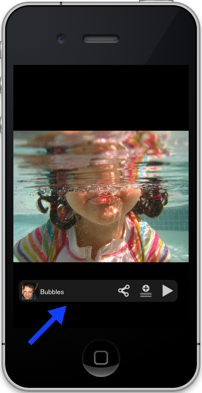
If you don't want to see the quick actiontoolbar while in Full Screen view, just tap and hold anywhere on the screen to hide it. If you want to see the quick toolbar again, while in Full Screen view, tap and hold anywhere on the screen. If you have enabled the tap and hold action, tap and hold won't hide/display the toolbar, instear just drag the toolbar to the bottom of the screen, to hide it. To make it appear, drag it from the bottom of the screen.
You can also drag the toolbar to other areas of the screen a leave it there.
Browsing and Zoom
When you are in Full Screen you can swipe through photos and zoom by pinching.